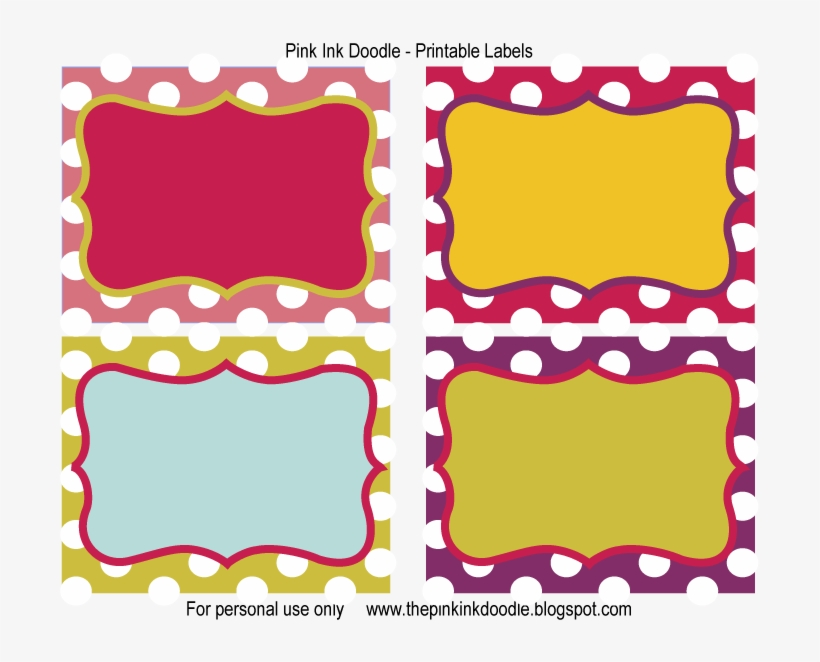
Printing labels at home used to mean hand-writing sticky notes or relying on expensive third-party services. Today, anyone with a standard inkjet or laser printer can produce professional-grade labels in minutes—thanks to customizable, downloadable templates. Whether you're shipping orders, organizing pantry items, or branding handmade products, the right label template transforms a tedious task into a seamless workflow.
But not all templates deliver on usability. Many claim to be “print-ready” but misalign during printing, lack design flexibility, or only support outdated software. The real value lies in templates that combine precision, compatibility, and ease of customization.
Let’s break down what makes a label template work, where to find reliable ones, and how to avoid common printing errors that waste time and supplies.
What Makes a Good Label Template to Print?
A label template isn’t just a digital sticker—it’s a bridge between your data and physical output. A high-quality template ensures:
- Accurate dimensions that match your label stock (e.g., 2" x 4", 4" x 6")
- Bleed zones and margins that prevent text from being cut off
- Alignment guides to avoid shifting during printing
- Compatibility with common software like Word, Google Docs, or PDF editors
- Editable fields for names, barcodes, SKUs, or addresses
Without these, even the best printer produces smudged, misaligned, or unusable labels.
For example, a small business selling candles might need consistent product labels with ingredients, weight, and brand logo. Using a generic template without proper spacing could force last-minute hand corrections—undermining professionalism.
A good template eliminates guesswork. It’s pre-formatted to your label sheet’s layout, so you update the content and print with confidence.
Common Label Types and Their Uses
Not all labels serve the same purpose. The template you choose should match your use case. Here are the most common types:
Shipping Labels Used for packages, these typically include sender/recipient addresses, tracking barcodes, and carrier logos. Templates here must align exactly—misplaced ZIP codes can delay delivery.
Best for: E-commerce sellers, small couriers, Amazon FBA prep Template tip: Use templates designed for 4" x 6" thermal or adhesive sheets.
Product Labels These carry branding, ingredients, pricing, or compliance info. For food, cosmetics, or retail goods, precision and visual appeal are critical.
Best for: Crafters, food entrepreneurs, Etsy shop owners Template tip: Include space for regulatory text (like “Net Wt. 8 oz”) and use high-resolution image support.
Organization Labels For drawers, bins, files, or pantry items. These prioritize clarity over design but benefit from clean layouts.
Best for: Home offices, schools, garages Template tip: Use templates with bold, readable fonts and color-coding fields.
Barcode & Inventory Labels Used in retail, warehousing, or event management. These require integration with numbering systems or QR codes.
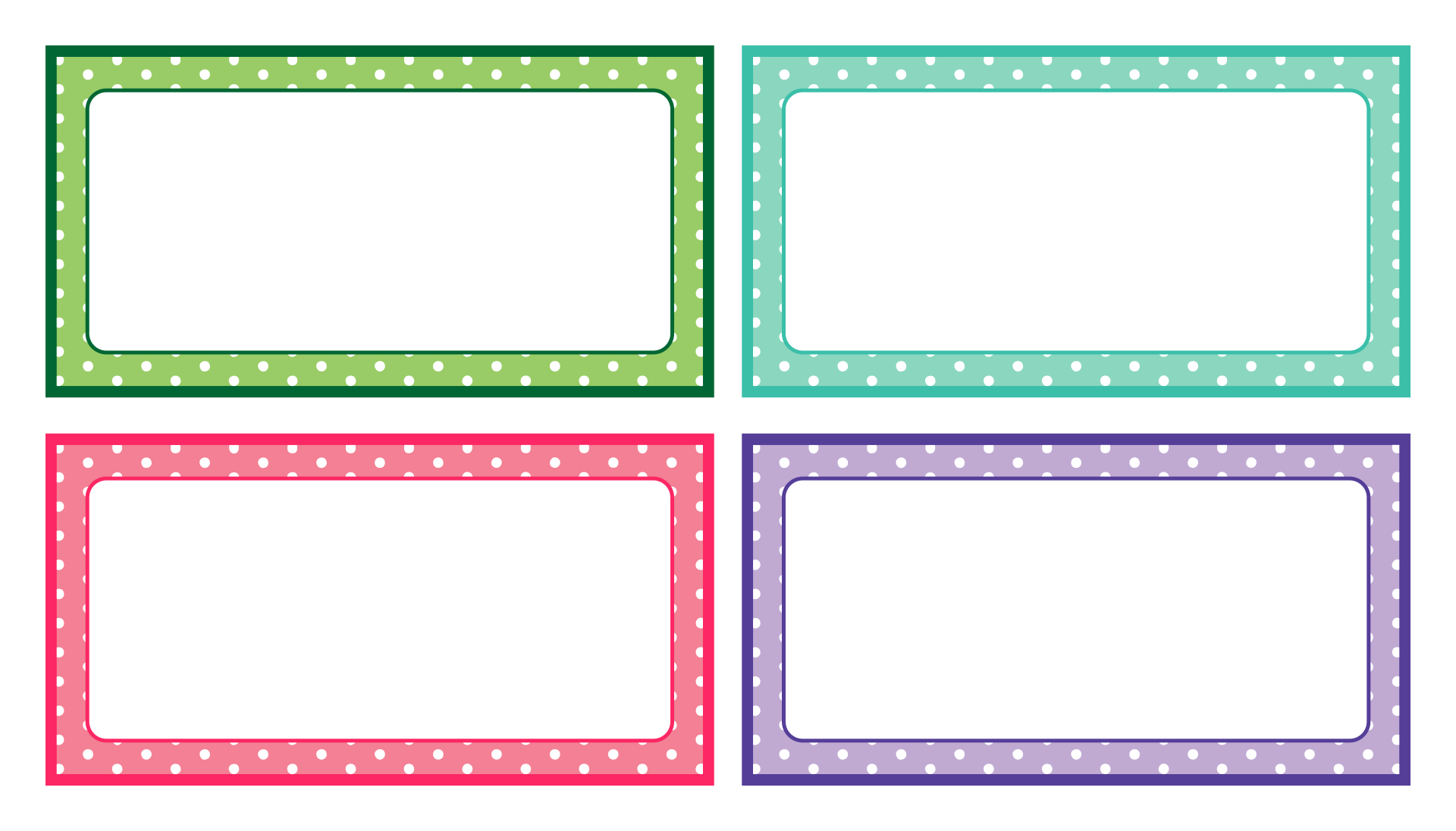
Best for: Small warehouses, libraries, inventory tracking Template tip: Choose templates that support dynamic data fields to auto-generate codes.
Address & Mailing Labels Standardized for envelopes and bulk mailings, these are often 1" x 2.625" or 2" x 4".
Best for: Nonprofits, event planners, direct mail campaigns Template tip: Pick templates compatible with mail merge in Word or Google Sheets.
Matching your need to the right template structure prevents rework and ensures consistency.
Top 5 Sources for Printable Label Templates
Not all free templates are created equal. These five sources consistently deliver reliable, well-formatted label templates that print correctly on the first try.
| Source | Best For | Supported Formats | Notable Features |
|---|---|---|---|
| Avery Design & Print | Beginners, standard label sizes | Online editor, PDF, Word | Huge library, pre-sized for Avery sheets, barcode support |
| Microsoft Office Templates | Word users, office environments | .DOCX, .DOTX | Built-in mail merge, integrates with Excel |
| Canva | Design-focused users, branding | PDF, PNG, JPG | Drag-and-drop editor, thousands of modern designs |
| Template.net | Quick downloads, commercial use | Word, PSD, Illustrator | Industry-specific templates (e.g., wine labels) |
| LabelJoy | High-volume, database-driven printing | PDF, Excel-linked | Batch printing, supports barcodes, Windows only |
Avery stands out because it matches physical product numbers (like 5160 or 6570) with exact digital templates. If you’re using Avery 5160 address labels, their online tool ensures your text won’t bleed into adjacent labels.
Canva excels for visual branding—think round perfume labels or kraft paper soap tags. Its drag-and-step interface requires no design experience, and you can export as high-res PDFs for crisp printing.
Microsoft Word templates are ideal if you're merging a customer list into shipping labels. Use the Mailings tab, link to an Excel sheet, and generate hundreds of address labels in one print job.
Avoid random .ZIP file downloads from obscure sites. These often contain malware or outdated formats. Stick to trusted platforms with user reviews and clear compatibility info.
How to Print Labels Without Smudging or Misalignment
Even the best template fails if printing isn’t done right. These real-world tips prevent wasted sheets and reprints:
1. Always print a test page on plain paper. Align the blank label sheet with the printed test to check positioning. Adjust margins if text spills over.
2. Use the correct paper type in printer settings. Select “labels” or “matte photo paper” instead of “plain paper” to control ink absorption and prevent smearing.
3. Feed sheets slowly and straight. Label paper jams more easily than regular paper. Use the manual feed tray if available.
4. Let ink dry before peeling. Especially with inkjet printers, touching freshly printed labels can smear text. Wait 30–60 seconds.
5. Store printed labels flat and dry. Moisture curls edges and degrades adhesive. Use resealable bags for long-term storage.
One online seller reported throwing away 50 label sheets in a week—until they realized their printer was scaling to “fit page.” Turning off scaling in print settings fixed the alignment instantly.
Small oversights like these cost time and money. A 10-minute test run saves hours of frustration.
Design Tips for Professional-Looking Labels
Templates give structure, but design makes the difference between “homemade” and “high-end.”
- Stick to 2–3 fonts max. Use one for the product name (bold), one for details (clean sans-serif).
- Use brand colors consistently. Save your palette in the template for reuse.
- Leave breathing room. Crowded labels look unprofessional. Maintain at least 0.125" padding.
- Include a logo or icon. Even a simple monogram adds polish.
- Test readability at actual size. A font that looks good on screen may be too small when printed.
For example, a coffee brand using a minimalist black-and-white template saw a 20% increase in social media tags after adding a small roasted bean icon. Tiny details build brand recall.
When to Use Online Tools vs. Desktop Software
The choice between web-based editors and desktop programs depends on your workflow.
Use Online Tools (like Canva or Avery.com) if: - You’re designing occasionally - You want drag-and-drop simplicity - You collaborate with others - You need mobile access
Use Desktop Software (like Word or LabelJoy) if: - You’re printing in bulk - You’re merging data from spreadsheets - You need offline access - You’re using specialized label printers
Hybrid approach: Design in Canva, export as PDF, then import into Word for mail merge. This gives you both design flexibility and automation power.
Avoid switching between platforms without testing output. A font that renders perfectly online might fall back to a default on desktop.
Avoid These Common Label Template Mistakes
Even experienced users trip over these pitfalls:
- Using the wrong template size. A 2" x 3.5" template won’t fit 2" x 4" labels. Verify dimensions before designing.
- Ignoring printer margins. Some printers can’t print edge-to-edge. Leave at least 0.25" margin.
- Forgetting the adhesive layout. Templates should show cut lines and gaps between labels.
- Overloading with information. A shipping label doesn’t need your return policy.
- Skipping proofing. Always print one sheet first.
One craft brewery wasted an entire run of bottle labels because they used a square template on rectangular stock. The design was cut off on both sides. A 30-second check would’ve prevented the loss.
Final Thoughts: Start Simple, Scale Smart
The best label template to print isn’t the most feature-packed—it’s the one that fits your actual workflow. Start with a proven template from Avery or Microsoft, test with a single sheet, and refine before scaling.
Customization beats complexity. A clean, accurate label builds trust far more than flashy graphics. Whether you’re labeling jars in a kitchen or shipping hundreds of orders, the right template turns chaos into consistency.
Pick a template, load your content, and print with confidence—your labels should work as hard as you do.
FAQ
What should you look for in Best Label Templates to Print at Home Easily? Focus on relevance, practical value, and how well the solution matches real user intent.
Is Best Label Templates to Print at Home Easily suitable for beginners? That depends on the workflow, but a clear step-by-step approach usually makes it easier to start.
How do you compare options around Best Label Templates to Print at Home Easily? Compare features, trust signals, limitations, pricing, and ease of implementation.
What mistakes should you avoid? Avoid generic choices, weak validation, and decisions based only on marketing claims.
What is the next best step? Shortlist the most relevant options, validate them quickly, and refine from real-world results.